 Aheadly
AHEADLY 1.6.5.1
The Aheadly 1.6.5.1 guide
Calendar, Earnings, Hub, Watch and Alerts. Here’s where to start.
These steps are for the installed app. Website examples use sample data and stay in Guest mode; they do not sign in, post or send device notifications.
Try the website demoGetting started
Choose your language on first launch. Read the introduction and accept the terms to open the calendar.
- Choose a language on first launch. Use the account entry at the top of the app for appearance and preferences.
- Read the introduction, check the terms agreement and enter the app.
- Start in guest mode. A local watchlist does not require an account.
The five bottom tabs are Calendar, Earnings, Hub, Watch and Alerts. Account settings include language, light/dark theme, week start and market order.
Explore markets and disclosure dates
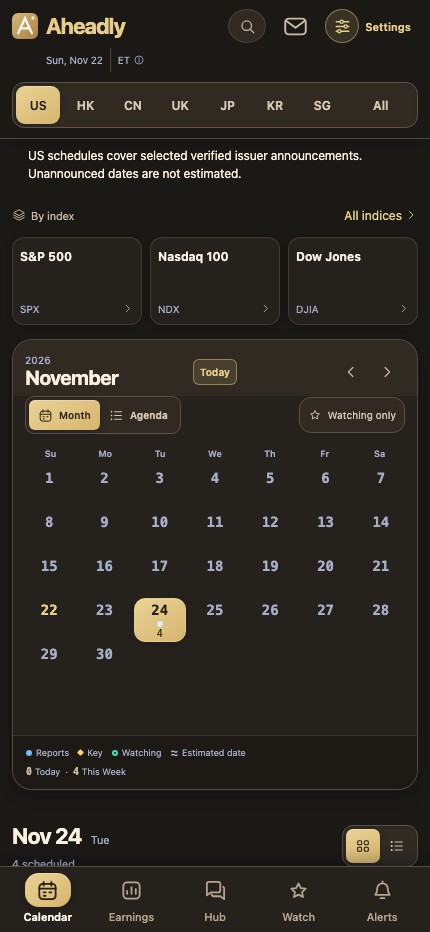
Open Calendar in the bottom navigation and browse by market and date.
- United States · Hong Kong · China A-shares · United Kingdom · Japan · South Korea · Singapore
- Switch between Month and Agenda. Select a date, or use Today and Next 7 days to focus the schedule.
- US history uses SEC filings; the forward calendar includes selected verified issuer announcements. Filing dates are distinct from report announcement dates, and unannounced dates are not estimated. Korean dates initially cover selected results presentations; some financial values are unavailable. Coverage varies across all markets.
Some markets and dates have partial coverage. An empty day does not mean no company reports. Check official announcements.
Read earnings and company details
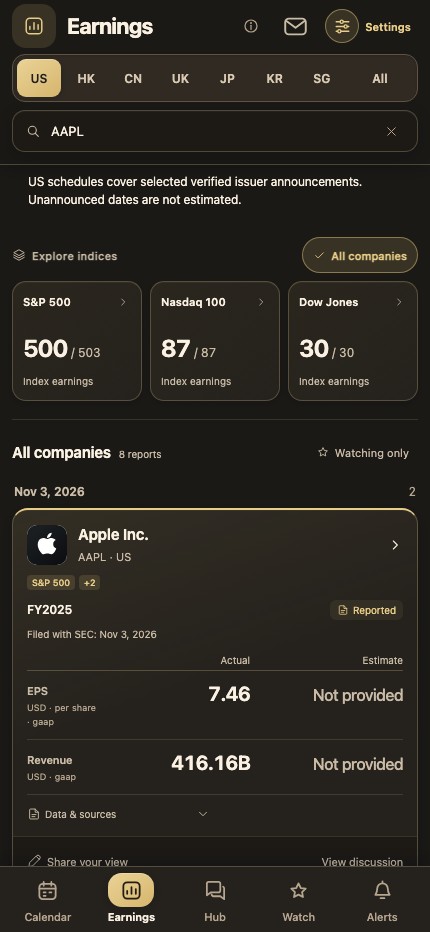
Earnings shows published reports, with actual EPS and revenue alongside available estimates.
- Choose a market, then search by company name or ticker. All companies is the default; choose an index card to filter the list.
- Combine index, search and Watching only filters. More indices opens additional cards. Counts describe report coverage, not investment performance.
- Open a report for company details, historical results and sources. Calendar’s index pages also offer Upcoming, Reported and Members.
Not provided means unavailable, not zero. Coverage, currencies and reporting periods vary; expand sources before comparing figures.
Build your watchlist
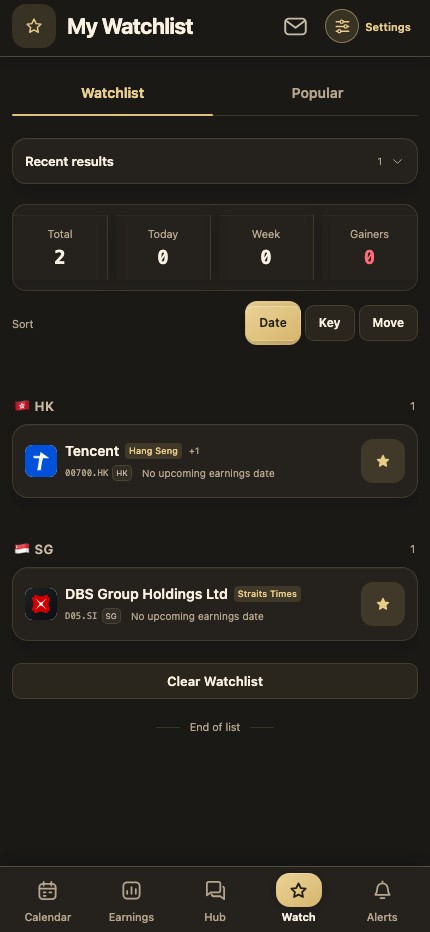
Add the companies you follow to see their dates together.
- Open Popular in Watch. Each of the seven markets has six starting companies; these are editorial picks, not a live ranking.
- Tap company cards to follow or unfollow, then switch to the Watchlist tab. Popular and Watchlist can also be swiped horizontally.
- Use search to find more companies, or follow from company details. Watchlist groups your companies by market and includes their latest available results.
Guest data stays on your device. Signing out returns you to guest data, and each account has its own local cache.
Set earnings reminders
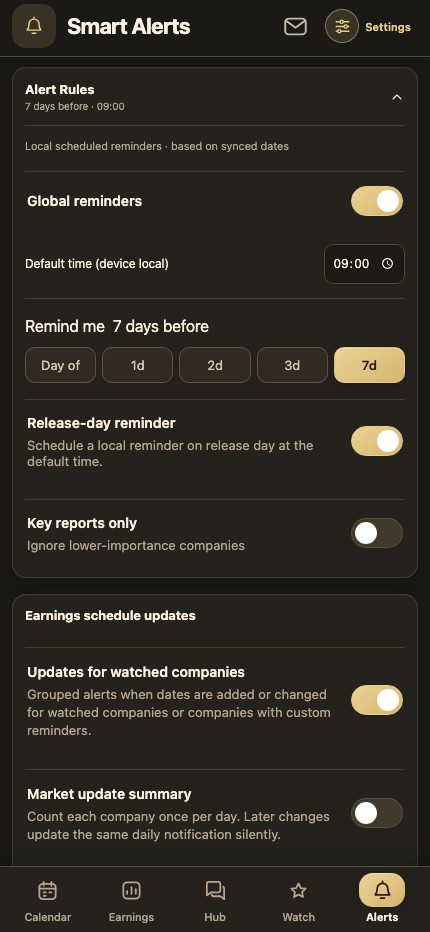
Open Alerts → Reminder rules to set global defaults. A company’s own reminder settings can override them.
- Turn reminders on, choose a delivery time, and select the disclosure day or 1, 2, 3 or 7 days before.
- Choose same-day reminders, key-company filtering and date-change alerts as needed. Allow device notifications when prompted.
- In company details, open Reminders to use global defaults or set that company’s own lead time and delivery time. Check the upcoming list in Alerts.
If notifications are missing, check permissions. Android may also require exact-alarm access or battery settings. The app cannot keep refreshing while suspended; reopening it resumes sync.
Read and join company discussions
Open Hub for company discussions. Sign in to publish, comment or reply in the installed app.
- Browse Latest, Watchlist or My posts. Filter by market or company to find the conversation you need.
- Use the compose button, choose a company, and optionally attach a published report. Posts and comments accept up to 500 characters.
- Open a discussion to read comments and grouped replies. Report, mute or block from the content menu when needed.
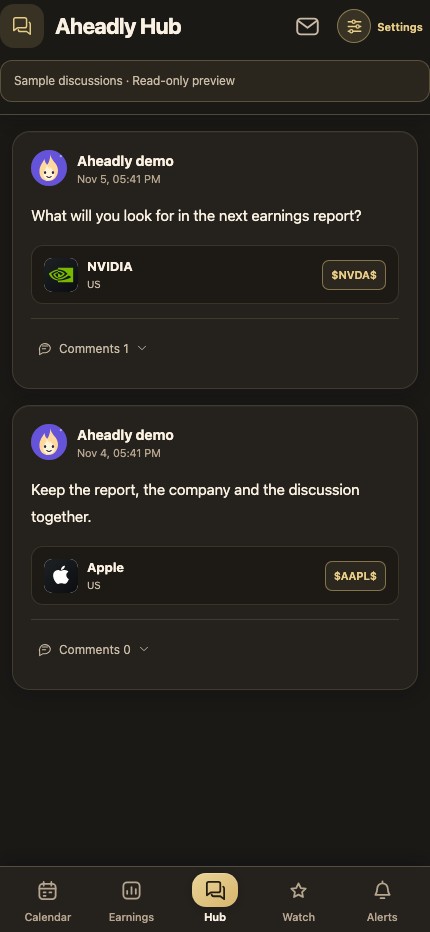
The website shows labelled, read-only sample discussions. Company posts are user content; check source reports and the community terms.
Keep up with your messages
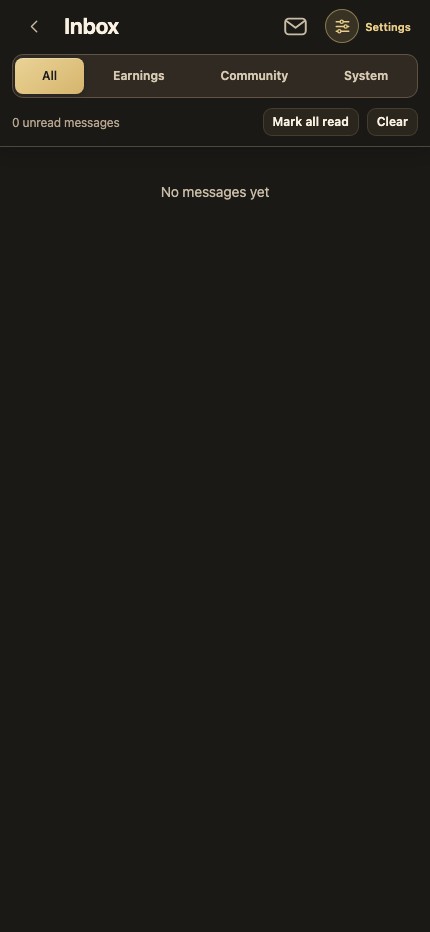
Open the bell icon in the app header to view Inbox. Unread badges show what you have not opened yet.
- Switch between All, Earnings, Community and System. Other appears when that category has messages.
- Tap a message to open the related company or discussion. You can also mark the current category as read or clear its messages.
- Guests can review local earnings messages. Sign in for account messages, replies and system notices.
Inbox records and device notifications are separate. A message can be in the inbox even when system notification permission is off.
Account, sync and preferences
Use the account entry at the top of the app. You can browse as a guest; an account adds cloud sync and participation in Hub.
- Open Account at the top of the app to register or sign in. Email registration asks for a unique username; your email is not your public name.
- After email registration, enter the code or open the verification link. Use the code if you read email on another device.
- Sign in to sync your watchlist and reminder preferences. Use the refresh action at the top of Account to refresh app data.
- Open Account → Feedback to report a problem or share a suggestion.
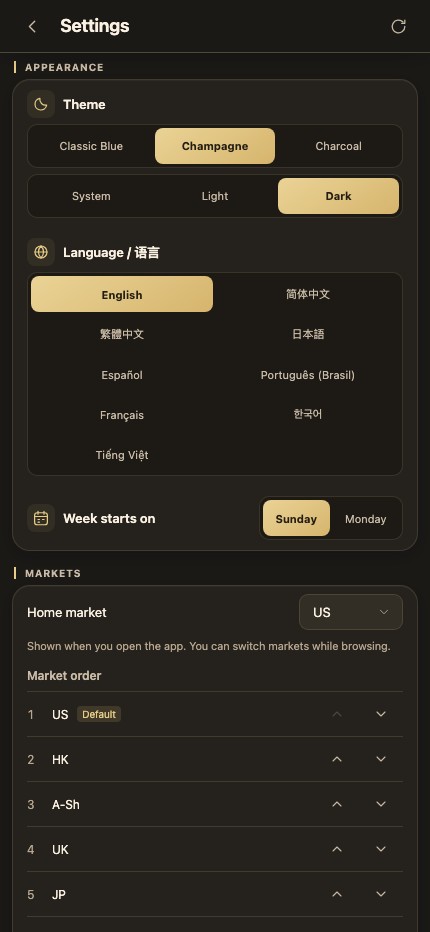
Appearance holds theme, language and week start; market preferences control market order. If sync fails, use the retry prompt before editing reminder settings.
When a date moves, keep up.
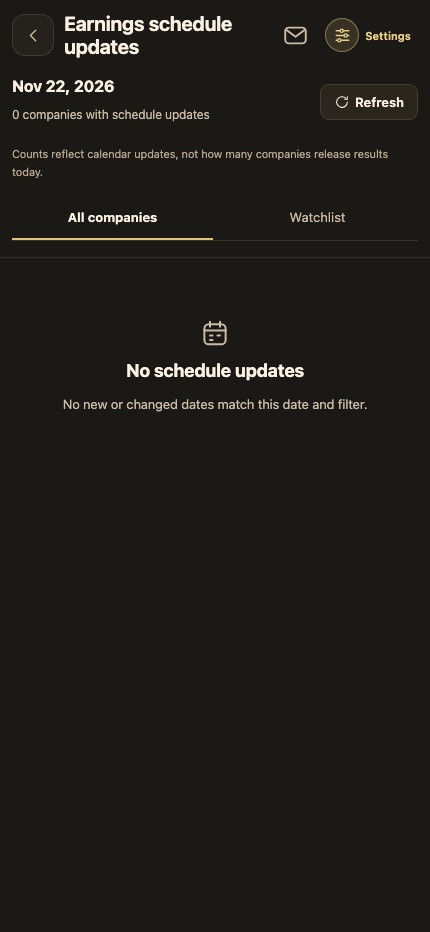
In Alerts, set watched-company date updates and the market-wide daily summary separately. Open View updated dates, or a summary in Inbox. Switch between All companies and Watchlist. Counts refer to companies with new or changed future dates that day.
Remote date-update pushes currently require Android, a verified account, notification permission and a working Google push connection. iOS and web do not support these remote pushes. Guest local reminders remain separate. This offline demo shows an empty update list.
Appearance
In Account, choose Classic Blue, Champagne Gold or Charcoal. Then choose System, Light or Dark independently. Gold with System appearance is the default for new installs.
A glance on Apple Watch.
Pair with your iPhone running Aheadly. Choose Today, Tomorrow, This week or Next week and select a market independently. Sync from the phone to refresh your watchlist and saved market calendars.
Requires a paired iPhone and watchOS 10 or later. Watch UI is English or Chinese. Uncached markets need Aheadly open on the iPhone. Optional local reminders use the company market’s time zone; changed or cancelled dates need a new sync. Store availability is listed on the download page.